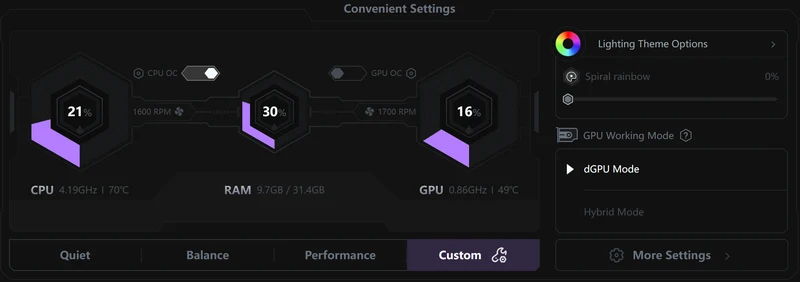
Legion Space replaced Lenovo Vantage on recent Legion laptops. Menus and limits differ between models, so the numbers below apply to my Legion Pro 7i Gen 10 (16IAX10H, Core Ultra 9 275HX, RTX 5080 175W). The way each setting works should carry over to other Legion Gen 10 models.
Power modes: Quiet, Balance, Performance and Custom
The four buttons on the home screen set the CPU and GPU power limits and the fan behaviour. Fn+Q cycles through Quiet, Balanced and Performance; Custom joins the cycle only if you tick "Press Fn+Q to toggle to Custom Mode" on the Custom page.
| Mode | Average / min FPS | CPU temp (avg / max) | GPU power |
|---|---|---|---|
| Balanced | 58.2 / 51.0 | 79 / 89 °C | 85W |
| Balanced + Silent PerformanceBIOS option, see below | 76.0 / 67.7 | 83 / 99 °C | 146W |
| Performance | 80.4 / 72.0 | 94 / 104 °C | 161W |
| Custom "Cool CPU"my profile, see below | 58.8 / 52.3 | 75 / 80 °C | 90W |
- Quiet is the most restrained mode. In my review it kept 66% of Performance mode's 3DMark score at 34.4 dB, against 42.0 dB for Balanced and 47.8 dB for Performance. Good for light games, video and work.
- Balanced limits the GPU to about 95W (80W base plus a 15W boost). The cooler has headroom, which is why the BIOS option below works so well.
- Performance gives the GPU its full power, but the CPU sits at 94–104 °C with thermal throttling for about half of the run, and the fans are clearly louder.
- Custom lets you set every limit yourself. It is covered in detail below.
Silent Performance Mode (BIOS)
Not in Legion Space at all: press F2 at startup and go to Configuration › Performance Tuning › Silent Performance Mode. When enabled, it changes only Balanced mode. On my unit it raised the GPU from about 85–95W to about 146–162W and held the CPU to a 60W limit, which is why it gets close to Performance mode's frame rate without the CPU running at 100 °C. Quiet, Performance and Custom are unaffected, so you can leave it on permanently and still use the other modes.
Full results and the Wukong numbers: Silent Performance vs Custom mode.
Custom mode: every slider explained
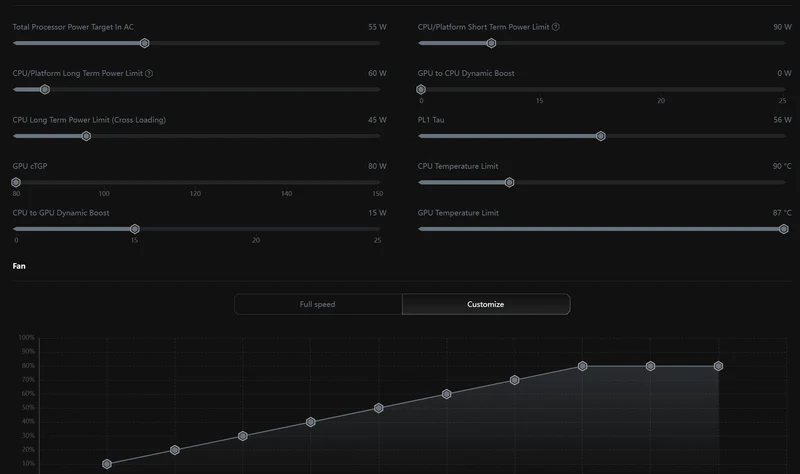
Open Custom from the home screen and you get the sliders below, a fan curve, saved profiles (01 and +) and an Extreme Mode preset, which I did not test. Restore Default loads the factory values of Quiet, Balance or Performance, which is the best starting point: on my unit it also showed Balanced mode's hidden limits for the first time.
| Setting | Balanced default | My Cool CPU value |
|---|---|---|
| Total Processor Power Target In ACThe CPU power target Lenovo's tuning aims for under mixed load | 55W | 55W |
| CPU/Platform Short Term Power LimitShort bursts: loading, app launches, the start of heavy work | 125W | 90W |
| CPU/Platform Long Term Power LimitSustained CPU power when only the CPU is busy, such as compiles or renders | 90W | 60W |
| CPU Long Term Power Limit (Cross Loading)Sustained CPU power while the GPU is also busy. The CPU limit that matters in games | 70W | 45W |
| PL1 TauSeconds the CPU may stay at the short-term limit. Legion Space labels it W | 56 | 56 |
| GPU cTGPGPU base power. Above 80W, Custom switches to a louder fan curve | 80W | 80W |
| CPU to GPU Dynamic BoostExtra GPU power when the CPU is under its budget | 15W | 15W |
| GPU to CPU Dynamic BoostLets the CPU borrow from the GPU's budget. Must be 0W for lower CPU limits to hold | 15W | 0W |
| CPU Temperature LimitThe CPU lowers its clocks above this temperature | 103 °C | 90 °C |
| GPU Temperature LimitThe GPU lowers its power above this temperature | 87 °C | 87 °C |
| Fan: Full speed / CustomizeFixed maximum, or a curve of fan percentage against temperature | Customize, default curve | unchanged |
Three things I learned from the logs:
- GPU to CPU Dynamic Boost is the hidden catch. With it at 15W, my CPU went about 15W over a lowered 55W cross-loading limit. At 0W the limit held.
- Raising GPU cTGP above 80W is not a free win. Any value above 80W switched Custom to a louder fan table. Silent Performance reaches about 146–162W with less noise.
- Custom ran 2–3 dB louder than Balanced even with Balanced values loaded, in every run I measured.
CPU OC menu
The CPU OC toggle on the home screen opens a menu with per-core turbo ratio limits for the performance cores (54x, or 5.4 GHz, with one or two active by default) and the efficient cores (46x), an AVX2 ratio offset, a cache voltage offset (0V by default, down to −0.05V) and the processor cache ratio (38x). There is no core voltage offset, so it is not a CPU undervolting tool.
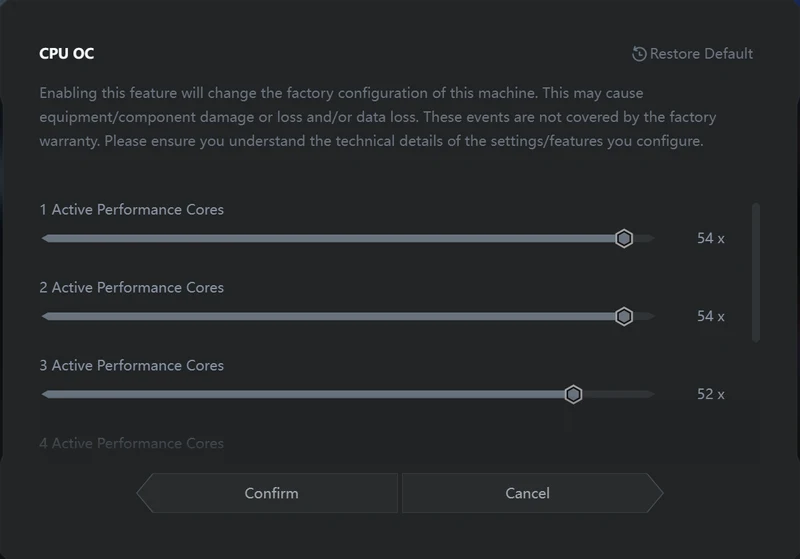
- It needed virtualization off. On my unit the menu only worked with virtualization disabled in the BIOS. That also disables Docker, WSL2, Hyper-V and Windows' Memory Integrity protection.
- Capping the performance cores at 50x changed nothing in games. In Cyberpunk 2077 the fastest core averaged about 3.4–3.8 GHz in Balanced, Silent Performance and Custom, so a 5.0 GHz cap almost never came into play. CPU temperature stayed within 1–2 °C of the uncapped run.
My advice: leave it at Restore Default and keep virtualization on.
GPU Working Mode and GPU OC
- dGPU Mode connects the display directly to the RTX GPU. Use it for gaming; all my tests ran in this mode.
- Hybrid Mode runs the display through the processor's integrated graphics and wakes the RTX GPU only when needed. Use it on battery and for light work. Switching between the two usually needs a restart.
- GPU OC turns on Lenovo's GPU overclock. I have not tested it; with the GPU already limited by power and temperature in every mode, I would not expect much from it.
System Settings
| Setting | What I found |
|---|---|
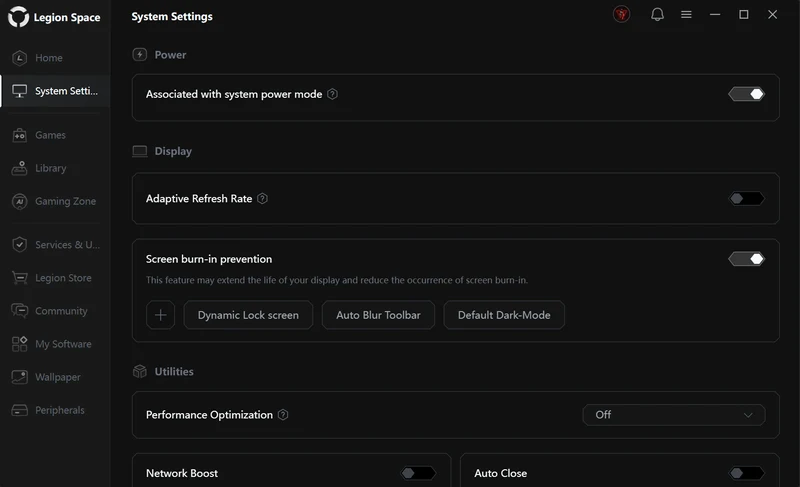
| Associated with system power modeOn by default | Meant to keep the Windows power mode in step with the Legion Space mode. On and off made no measurable difference to FPS or temperatures in my runs. I leave it on. |
| Adaptive Refresh RateOff on my unit | Lets the display change its refresh rate to save power. Not tested; I keep it off for gaming. |
| Screen burn-in preventionOn, with Dynamic Lock screen, Auto Blur Toolbar and Default Dark-Mode | Lenovo says it "may extend the life of your display and reduce the occurrence of screen burn-in". Worth keeping on for an OLED panel. |
| Performance OptimizationOff on my unit | Not tested; I keep it off. |
| Network Boost, Auto CloseOff on my unit | Not tested; I keep both off. |
Recommended settings
| BIOS | Silent Performance Mode enabled; virtualization on |
|---|---|
| Gaming | Balanced (with Silent Performance), dGPU Mode |
| Long CPU-heavy sessions | Custom "Cool CPU" profile |
| Work and video | Quiet, or Balanced; Hybrid Mode on battery |
| CPU OC / GPU OC | Default (off) |
| Associated with system power mode | On |
How I tested
- Laptop: my own Legion Pro 7i Gen 10 (16IAX10H), Core Ultra 9 275HX, RTX 5080 Laptop 175W, 32GB DDR5-6400, Legion Space 2.0.11.6, NVIDIA driver 621.01.
- Games: Cyberpunk 2077 v2.5 benchmark (Ray Tracing: Ultra, DLSS Auto, frame generation off) and Black Myth: Wukong benchmark tool, both at 2560×1600.
- Conditions: plugged in, dGPU Mode, raised on a cooling stand with its fans off, October 26–29, 2026; the October 29 runs with virtualization off in the BIOS. Logged with HWiNFO64 at 2-second intervals.
- Noise: phone sound meter at 30 cm. Treat differences under 2 dB as measurement noise.